
Introduction
Are you looking to create a professional website without coding? WordPress is the most popular website-building platform in the world, powering millions of websites, blogs, business portals, and eCommerce stores.
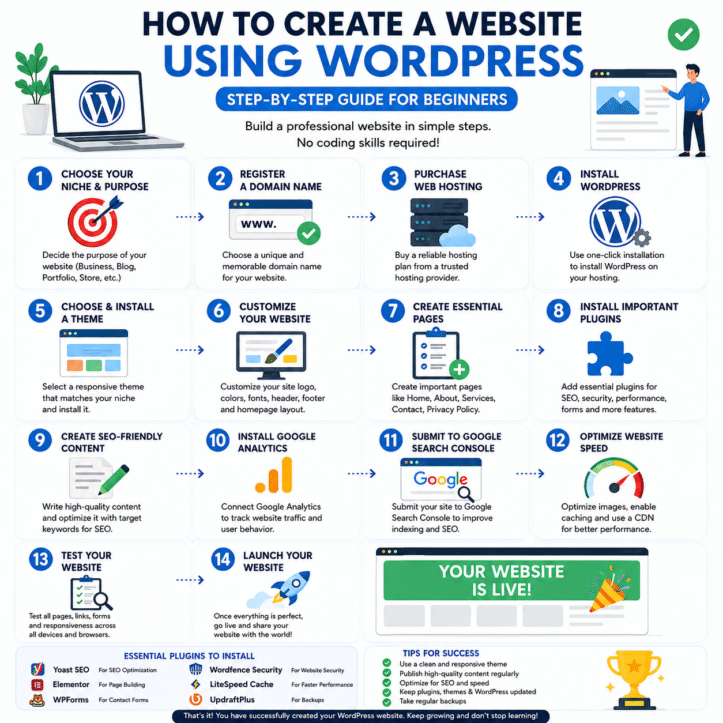
In this guide, you’ll learn how to create a website using WordPress, from purchasing a domain name to launching your website online.
Target Keywords:
- How to create a website using WordPress
- WordPress website tutorial
- Create WordPress website for beginners
- WordPress website setup guide
- Build a website with WordPress
Why Choose WordPress?
WordPress is free, flexible, and beginner-friendly. Whether you want a business website, blog, portfolio, or online store, WordPress can handle it all.
Benefits of WordPress
✔ Easy to use
✔ SEO-friendly
✔ Mobile responsive
✔ Thousands of themes and plugins
✔ No coding required
✔ Suitable for all types of websites
Official Website: https://wordpress.org
Step 1: Choose a Domain Name
A domain name is your website address, such as:
Tips for Choosing a Domain
- Keep it short and memorable
- Use business-related keywords
- Avoid numbers and hyphens
- Choose .com whenever possible
Useful Domain Registrars:
Step 2: Purchase Web Hosting
Web hosting stores your website files and makes them accessible on the internet.
Recommended Hosting Providers
- Bluehost – https://www.bluehost.com
- Hostinger – https://www.hostinger.com
- SiteGround – https://www.siteground.com
- HostGator – https://www.hostgator.com
Look for:
- Free SSL Certificate
- One-Click WordPress Installation
- Fast Loading Speed
- Daily Backup
- 24/7 Support
Step 3: Install WordPress
Most hosting companies provide one-click installation.
Installation Process
- Login to your hosting account.
- Open the Hosting Control Panel.
- Click “Install WordPress.”
- Enter website details.
- Create an admin username and password.
- Complete installation.
Login URL:
https://yourdomain.com/wp-admin
Step 4: Select a WordPress Theme
A theme determines the design and appearance of your website.
Popular Free Themes
- Astra
- GeneratePress
- Kadence
- OceanWP
- Neve
Theme Directory:
Install a Theme
Appearance → Themes → Add New → Install → Activate
Step 5: Install Essential WordPress Plugins
Plugins add extra functionality to your website.
Recommended Plugins
SEO Plugin
Yoast SEO
https://wordpress.org/plugins/wordpress-seo/
Page Builder
Elementor
https://elementor.com
Contact Form
WPForms
https://wpforms.com
Security
Wordfence Security
https://www.wordfence.com
Website Speed
LiteSpeed Cache
https://wordpress.org/plugins/litespeed-cache/
Step 6: Create Important Pages
Every website should have:
Home Page
Introduce your business and services.
About Us
Tell visitors about your company.
Services Page
Describe what you offer.
Contact Page
Include:
- Phone Number
- Email Address
- Contact Form
- Google Map
Privacy Policy
Required for legal compliance.
Step 7: Optimize Your Website for SEO
SEO (Search Engine Optimization) helps your website rank on Google.
SEO Best Practices
- Use target keywords naturally
- Write quality content
- Optimize images
- Add internal links
- Improve website speed
- Use SEO-friendly URLs
Keyword Research Tools
Google Keyword Planner
https://ads.google.com/home/tools/keyword-planner/
Ubersuggest
https://neilpatel.com/ubersuggest/
Ahrefs Keyword Generator
https://ahrefs.com/keyword-generator
Step 8: Submit Your Website to Google
After launching your website, submit it to Google Search Console.
Google Search Console:
Benefits:
- Faster indexing
- Track website performance
- Monitor keyword rankings
- Fix SEO issues
Step 9: Make Your Website Mobile-Friendly
More than 60% of users visit websites from mobile devices.
Checklist:
✔ Responsive design
✔ Fast loading speed
✔ Easy navigation
✔ Optimized images
✔ Mobile-friendly buttons
Step 10: Launch Your Website
Before publishing:
- Test all pages
- Check forms
- Verify links
- Proofread content
- Test on mobile devices
Congratulations! Your WordPress website is now live.
Best Keywords for Ranking This Blog
Primary Keywords:
- How to create a website using WordPress
- WordPress website tutorial
- Create website with WordPress
- WordPress website setup
- Build website without coding
Long-Tail Keywords:
- How to create a WordPress website step by step
- WordPress website tutorial for beginners
- How to start a business website with WordPress
- Best WordPress hosting for beginners
- WordPress SEO guide for new websites
Conclusion
Creating a WordPress website is easier than ever. By choosing a domain name, purchasing reliable hosting, installing WordPress, selecting a theme, and optimizing for SEO, you can launch a professional website in just a few hours.
Whether you’re starting a blog, business website, portfolio, or online store, WordPress provides all the tools needed to succeed online.